

Want to install Notepad++ in Ubuntu but aren’t sure which method works best? Notepad++ is a lightweight and powerful source code editor widely used for programming, scripting, and quick text editing. Known for its speed, plugin support, and syntax highlighting for dozens of languages, it has become a favorite tool among developers.
Although Notepad++ was originally built for Windows, many Linux users still prefer it for its simplicity and familiar interface.
The good news is that you can easily run Notepad++ on Ubuntu Linux using reliable and proven methods. Whether you choose the Snap package for quick installation and automatic updates, or install Notepad++ using Wine to run the official Windows version, both options allow you to use Notepad++ smoothly on your Ubuntu system.
In this step-by-step guide, you’ll learn exactly how to install Notepad++ in Ubuntu, launch it properly, and choose the method that fits your workflow. Whether you’re new to Linux or an experienced user setting up your development environment, this tutorial will help you get Notepad++ up and running quickly and efficiently.
Install Notepad++ in Ubuntu Using Snap (Recommended)
Using Snap is the easiest and most beginner-friendly way to install Notepad++ in Ubuntu. The Snap package includes the required Wine environment bundled inside, so you don’t need to manually configure compatibility layers or handle complex dependencies. Everything is packaged together, making the installation process faster, cleaner, and more reliable for most Ubuntu users.
Another major advantage of installing Notepad++ via Snap is automatic updates. Once installed, Snap keeps the application updated in the background, ensuring you always run a secure and stable version without additional maintenance. If you prefer a simple, low-maintenance setup with minimal configuration, this method is highly recommended.
Step 1 – Check if Snap is Installed
Snap comes pre-installed on Ubuntu 16.04 LTS and all newer releases. If you’re running Ubuntu 22.04 LTS (Jammy Jellyfish) or Ubuntu 24.04, Snap is already available on your system.
To verify Snap is installed, open a terminal and run:
snap versionIf Snap is installed correctly, the command will display the installed version along with related services.
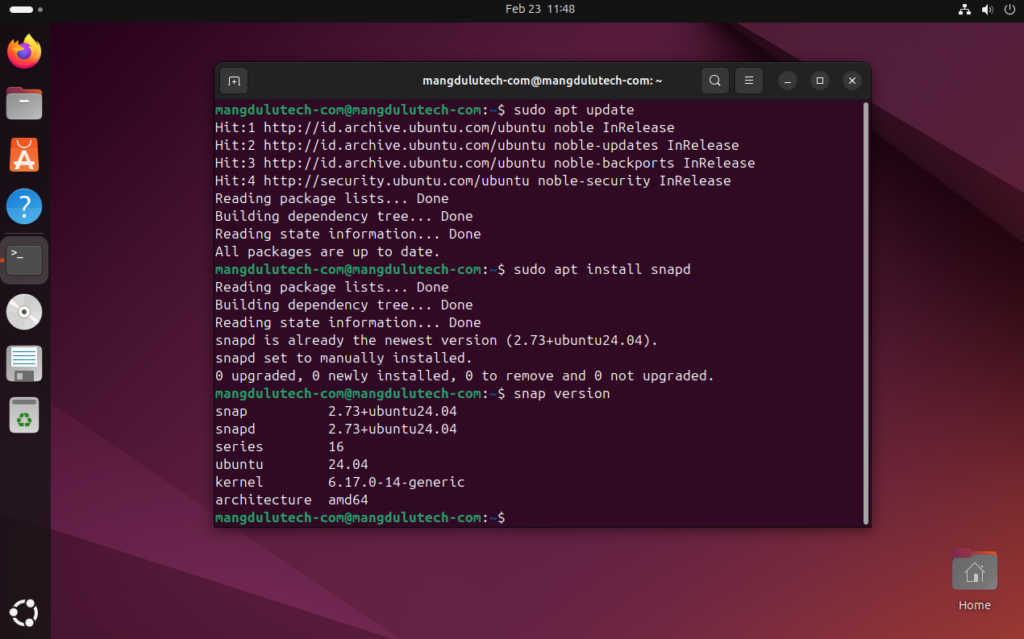
For Ubuntu versions between 14.04 LTS and 15.10, or Ubuntu flavors that don’t include Snap by default, install it manually with:
sudo apt update
sudo apt install snapd
After installation, log out and log back in, or restart your system to ensure Snap’s paths are properly updated and ready to use.
Install Notepad++ via Snap
Once Snap is properly installed and running on your system, you can install Notepad++ in Ubuntu with a single command. The Snap package simplifies the entire setup process by bundling the required Wine environment internally, eliminating the need for manual dependency configuration.
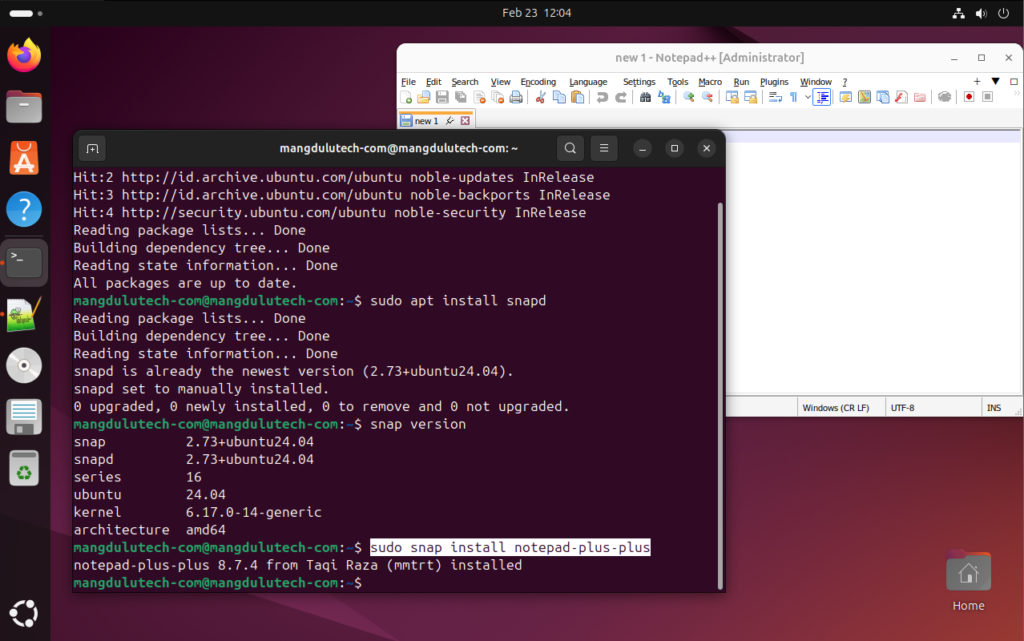
Open your terminal and run the following command:
sudo snap install notepad-plus-plusThe installation may take a few minutes depending on your internet speed. During this process, Snap downloads the Notepad++ package and automatically configures the embedded Wine compatibility layer. Because Wine is included inside the Snap package, you do not need to install or configure Wine separately.
Launch Notepad++
After the installation is complete, you can launch Notepad++ in two simple ways. The easiest method is to search for Notepad++ in your Ubuntu application launcher and click the icon.
Alternatively, you can start it directly from the terminal:
notepad-plus-plusAlthough the application runs through Wine in the background, it integrates smoothly with your Ubuntu desktop environment and behaves like a native application.
How to Update the Snap Package
One of the key advantages of installing Notepad++ via Snap is automatic updates. The snapd service checks for updates multiple times a day and applies them automatically, ensuring your application remains secure and up to date.
To check when the last update occurred and when the next refresh is scheduled, run:
snap refresh --timeIf you prefer to update Notepad++ manually, use the following command:
sudo snap refresh notepad-plus-plusTo see a list of available Snap updates before installing them, run:
snap refresh --listKeep in mind that applications cannot update while actively running. If Notepad++ is open during a scheduled refresh, the update will be postponed until the application is closed.
How to Uninstall the Notepad++ Snap Version
If you decide to remove Notepad++ from your Ubuntu system, you can uninstall it using the Snap remove command:
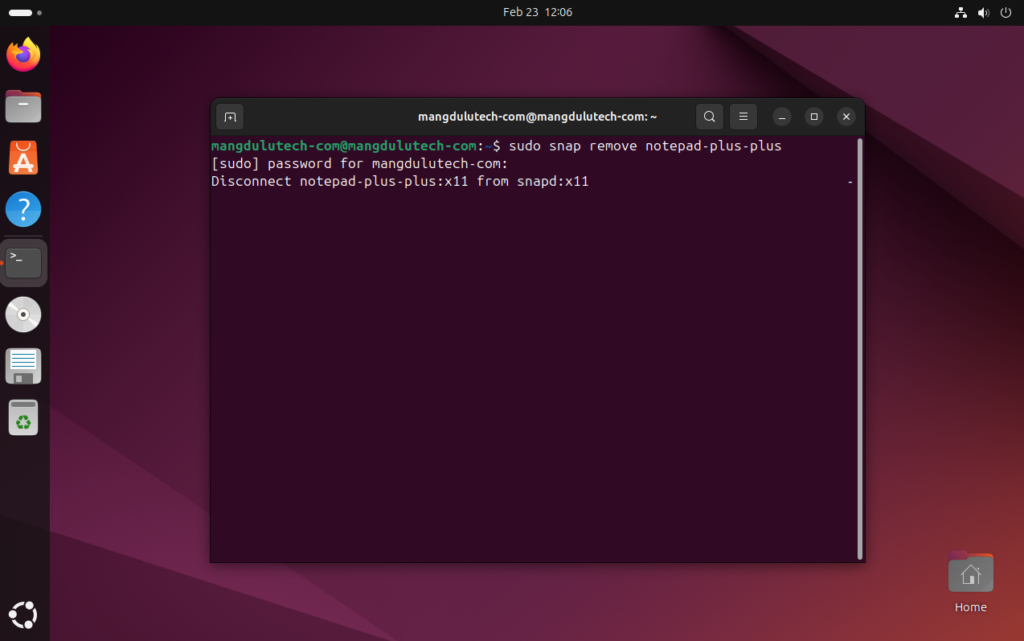
sudo snap remove notepad-plus-plusThis command removes the application while keeping a snapshot of your data for a limited period, allowing you to restore it if needed.
For a complete removal that deletes all associated data and revisions, use the purge option:
sudo snap remove --purge notepad-plus-plusAfter uninstalling, you can verify that the package has been removed by listing installed Snap applications:
snap listInstall Notepad++ in Ubuntu Using Wine
Wine provides an alternative way to install Notepad++ in Ubuntu by creating a compatibility layer that allows Windows applications to run on Linux systems. Unlike the Snap method, which bundles its own environment, this approach installs and runs the official Windows version of Notepad++. It is ideal for users who want full control over Wine configuration or prefer running the original installer directly.
With Wine properly configured, Notepad++ integrates well into the Ubuntu desktop environment and can be launched just like any other application.
Install Wine on Ubuntu
There are two main ways to install Wine on Ubuntu. You can use the default Ubuntu repository for a stable and tested version, or install the latest release from the official WineHQ repository for newer features and updates.
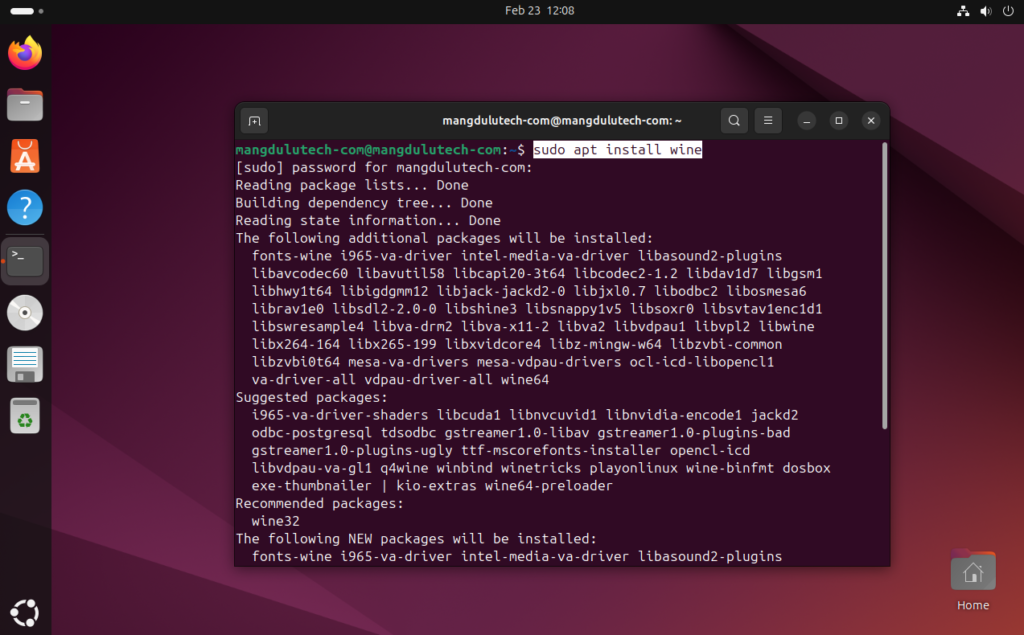
For a simple and quick setup, install Wine from Ubuntu’s default repository by running:
sudo apt update
sudo apt install wine
After installation, initialize Wine by running:
winecfgThis command creates a hidden .wine directory in your home folder, which acts as a virtual Windows environment containing a simulated C: drive.
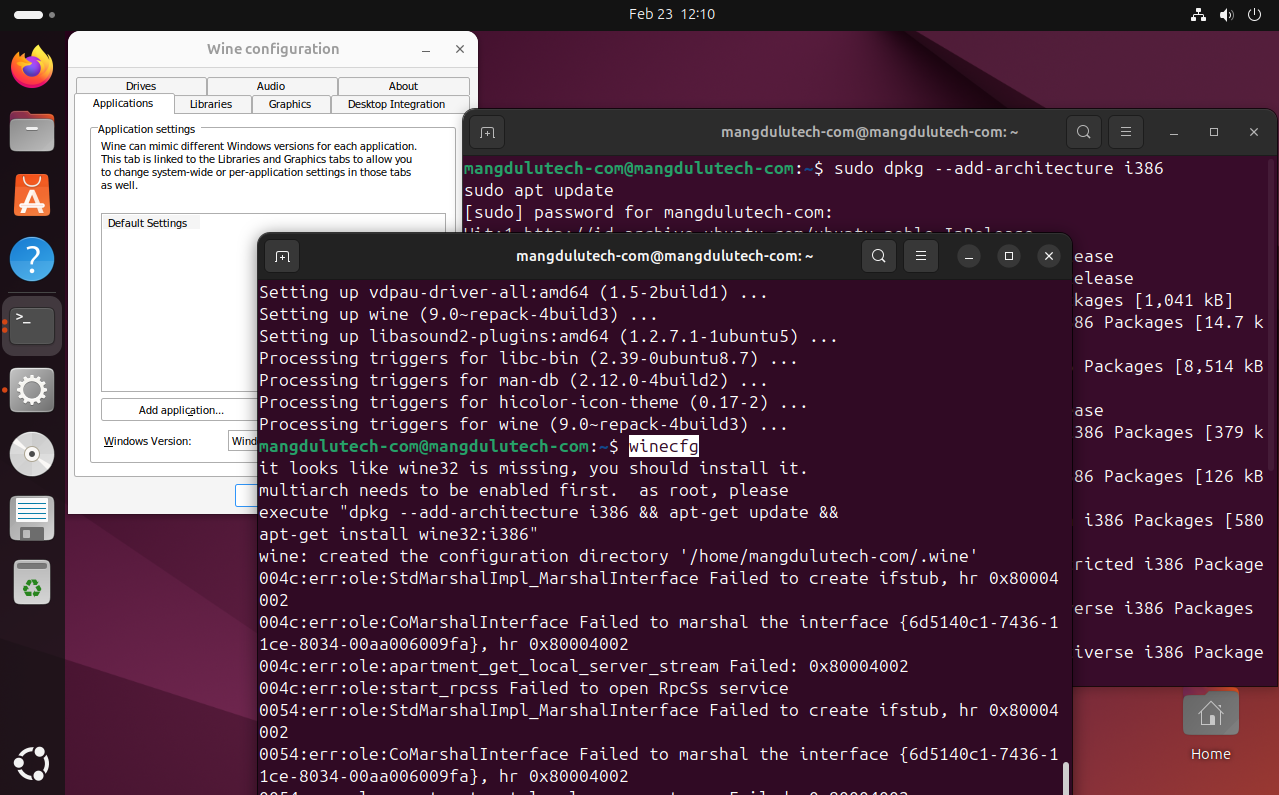
If you are using a 64-bit Ubuntu system, enable 32-bit architecture support first, since many Windows applications depend on it:
sudo dpkg --add-architecture i386
sudo apt update
Install the Latest Wine Version from WineHQ (Optional)
If you prefer the most up-to-date Wine version, install it directly from the official WineHQ repository.
Create a directory for repository keys:
sudo mkdir -p /etc/apt/keyringsDownload and add the WineHQ GPG key:
wget -O - https://dl.winehq.org/wine-builds/winehq.key | sudo gpg --dearmor -o /etc/apt/keyrings/winehq-archive.keyAdd the WineHQ repository source:
sudo wget -NP /etc/apt/sources.list.d/ https://dl.winehq.org/wine-builds/ubuntu/dists/$(lsb_release -sc)/winehq-$(lsb_release -sc).sourcesUpdate package lists and install the stable release:
sudo apt update
sudo apt install --install-recommends winehq-stable
WineHQ provides three main package variants: winehq-stable (recommended for most users), winehq-devel (development release), and winehq-staging (testing version with experimental patches).
Download the Notepad++ Windows Installer
To proceed, download the official Notepad++ Windows installer from the Notepad++ website or a trusted mirror. Save the .exe file in your Downloads directory for easy access.
Run Notepad++ via Wine
Navigate to your Downloads folder and execute the installer using Wine:
cd ~/Downloads
wine npp.*.exe
The Windows installation wizard will launch inside the Wine environment. Follow the on-screen instructions to complete the setup. By default, Notepad++ installs under:
~/.wine/drive_c/Program Files/Notepad++After installation, launch Notepad++ with:
wine ~/.wine/drive_c/Program\ Files/Notepad++/notepad++.exeCreate a Desktop Shortcut (Optional)
Wine often generates a .desktop launcher automatically inside ~/.local/share/applications. If you prefer creating one manually, create a new desktop entry file:
[Desktop Entry]
Name=Notepad++
Exec=wine "/home/USERNAME/.wine/drive_c/Program Files/Notepad++/notepad++.exe"
Type=Application
Icon=wine
Terminal=false
Categories=Development;
Replace USERNAME with your actual system username. Save the file as:
~/.local/share/applications/notepad-plus-plus.desktopAfter saving, open the file properties and enable Allow executing file as program under Permissions. The launcher will then appear in your application menu for quick access.
Frequently Asked Questions (FAQ)
Below are answers to common questions about how to install and run Notepad++ in Ubuntu, including troubleshooting tips and performance solutions.
Why won’t Notepad++ start after installing the Snap package?
If Notepad++ fails to launch after installing via Snap, the issue is usually related to missing Wine platform connections. The Snap package depends on specific Wine components to function properly.
Run the following commands to resolve connection issues:
snap install wine-platform-6-stable
snap connect notepad-plus-plus:wine-6-stable wine-platform-6-stable
If the connection already exists but the app still won’t open, try disconnecting and reconnecting it:
snap disconnect notepad-plus-plus:wine-platform-plug
snap connect notepad-plus-plus:wine-platform-plug wine-platform:wine-base-stable
After reconnecting, restart Notepad++ and verify that Snap services are running properly.
How do I fix small fonts and icons on high-resolution (4K) displays?
When running Notepad++ in Ubuntu using Snap or Wine, scaling issues may appear on high-DPI displays. Wine does not automatically adjust DPI settings for 4K screens.
To fix this, open Wine configuration:
winecfgUnder the Graphics tab, increase the DPI value to match your screen resolution. Apply the changes and restart Notepad++ to see improved scaling.
Can Notepad++ access files on external drives in Ubuntu?
By default, Snap packages have restricted filesystem access for security reasons. If Notepad++ cannot open files from an external hard drive or secondary partition, it may require additional permissions.
You can review Snap connections using:
snap connections notepad-plus-plusAlternatively, copy the file into your home directory before opening it in Notepad++.
Why is Notepad++ running slowly or using high CPU on Ubuntu?
Performance issues typically occur because Notepad++ runs through Wine rather than natively on Linux. Compatibility layers may increase CPU usage, especially under XOrg sessions or when multiple plugins are enabled.
Try closing background applications, disabling unnecessary plugins, or updating Wine to the latest stable version. If performance remains poor, consider switching to a native Linux text editor for better system integration.
What are the best native alternatives to Notepad++ for Ubuntu?
If you prefer a fully native Linux experience, several powerful text editors are available:
- Visual Studio Code – Cross-platform editor with extensive extensions.
- Geany – Lightweight and fast, similar in simplicity to Notepad++.
- Gedit – Default GNOME text editor with plugin support.
- Sublime Text – High-performance editor for advanced users.
These alternatives may offer better performance compared to running Notepad++ through Wine.
Does Notepad++ officially support Linux?
No, Notepad++ is officially developed for Windows only. There is currently no native Linux version. To use Notepad++ in Ubuntu, you must rely on compatibility layers like Wine or containerized packages such as Snap.
While these methods work reliably, performance and integration may differ from native Linux applications.
Conclusion
You now have two reliable and practical ways to install Notepad++ in Ubuntu. Whether you prefer the simplicity of the Snap package or the flexibility of running the official Windows version through Wine, both methods allow you to use Notepad++ effectively within a Linux environment.
The Snap method is ideal for most users because it requires minimal configuration and handles updates automatically in the background. Meanwhile, the Wine approach offers greater control and may be preferable if you want to manage the Windows installation directly or customize your Wine environment.
Ultimately, the best method depends on your workflow and development needs. Follow the step-by-step instructions outlined in this guide, choose the setup that fits your system, and you’ll have Notepad++ running smoothly on Ubuntu within minutes.
At Mangdulu Tech, we focus on providing clear, practical Linux tutorials designed to help you work smarter and more efficiently. Explore our Ubuntu guides for more installation walkthroughs, troubleshooting tips, and open-source insights to level up your development environment.